TDE Recovery

This week’s TSQL Tuesday is being held by the mighty Kenneth Fisher – Backup and Recovery- see this link, how can I not get involved with this one?

tsql

I have been blogging for about a year now and have covered most of Kenneth’s bullet points – except Internals and SSAS based stuff, so I decided to do something different but still about backups. This post is all about the importance of backing up certain objects when you are using TDE – Transparent Data Encryption.

To understand TDE see my older post  – https://blobeater.blog/2016/11/22/playing-with-tde/

So I have enabled TDE and I have a Full backup – lets restore it to a different server.

USE [master]
RESTORE DATABASE [DWHDB]
FROM  DISK = N'C:\temp\dwh.bak' WITH  FILE = 1, STATS = 5
GO

Cannot find server certificate with thumbprint ‘0xC0367AC8E9AE54538C17ACB0F63070D6FF21316A’.
Msg 3013, Level 16, State 1, Line 2
RESTORE DATABASE is terminating abnormally.

The dreaded cannot find server certificate with thumbprint message. Why is this happening?

Well if you read my post on TDE ( or anybody else’s) you would have noticed the following message:

Warning: The certificate used for encrypting the database encryption key has not been backed up. You should immediately back up the certificate and the private key associated with the certificate. If the certificate ever becomes unavailable or if you must restore or attach the database on another server, you must have backups of both the certificate and the private key or you will not be able to open the database.

So the point is – back them up

USE master
GO
BACKUP CERTIFICATE MyServerCert
TO FILE = 'c:\data\MyServerCert.cer'
WITH PRIVATE KEY
(FILE = 'c:\data\certificate_MyServerCert.pvk',
ENCRYPTION BY PASSWORD = 'xxxxxxxx')

Then on the restoring server you will need to issue the following (assuming you have a database master key too)


CREATE CERTIFICATE MyServerCert
FROM FILE = 'c:\temp\MyServerCert.cer'
WITH PRIVATE KEY (FILE = 'c:\temp\certificate_MyServerCert.pvk',
DECRYPTION BY PASSWORD = 'xxxxxxxx');

GO
USE [master]
RESTORE DATABASE [DWHDB]
FROM  DISK = N'C:\temp\dwh.bak' WITH  FILE = 1, STATS = 5

GO

RESTORE DATABASE successfully processed 13002 pages in 0.444 seconds (228.770 MB/sec) – the restore works a charm.


Checking your Wait Stats via Power BI

Wait stats is my go to thing, however I do get bored just querying it via a  table so I decided to broaden my horizons and see how “analytical” I could get with it via Power BI.

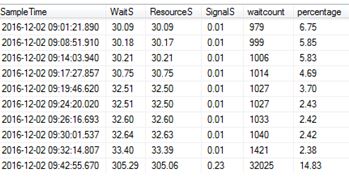
What I usually do is that I create a table and dump the contents of a famous waits stats script (*cough * Paul Randal, his code- NOT mine http://www.sqlskills.com/blogs/paul/wait-statistics-or-please-tell-me-where-it-hurts/) and all I do is put a timestamp on which I really want for time based analysis.

From there I can usually write some queries to see a trend – that is if one does exist.

Something like:

select * from dbo.WaitQueues
where waittype ='IO_COMPLETION' order by SampleTime

waits.JPG

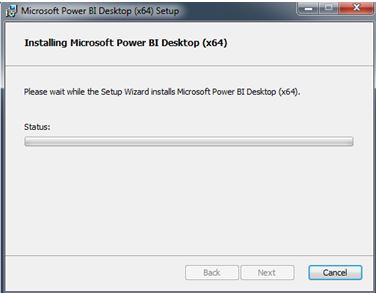
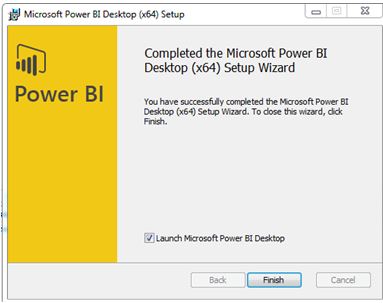
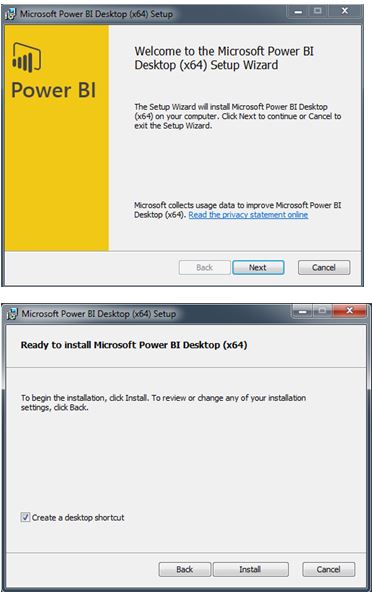
Anyways, I want to see Power BI in use now – first you need to download the Desktop version and install it. From https://powerbi.microsoft.com/en-us/

waits1.JPG

wait3.JPG

waits4.JPG

Select Get Data to setup a connection to your table.

waits5.JPG

You should then be able to preview your data.

waits6.JPG


Once the data has been loaded you can get creative – I am not creative at all! So if you are a Power BI person I apologise in advance.

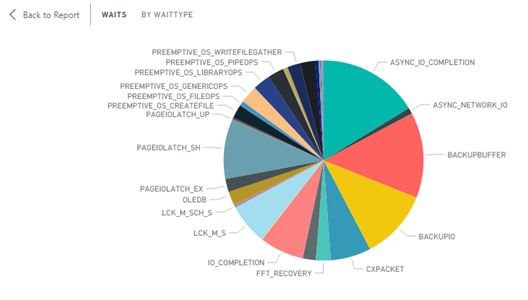
The first pie chart shows the Summary of my waits at a specific time.

waits11.JPG

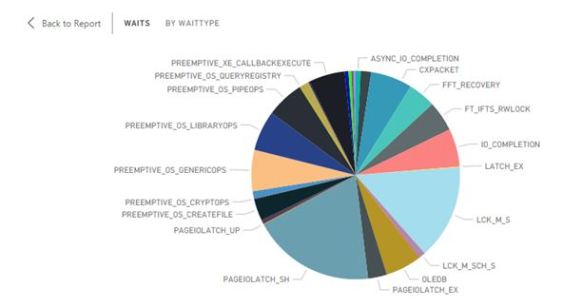
This is the pie chart at a different time point.

waits12.JPG

You can drill into a section of the pie chart to return the underlying details.

waits14.JPG

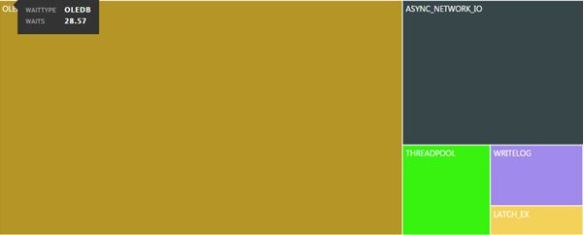
If you do not like using pie-charts you could switch to a tree map. This was me using CHECKDB heavily.

waits16.JPG

I wanted to see some visualization of what has happened to a specific wait over my time intervals.

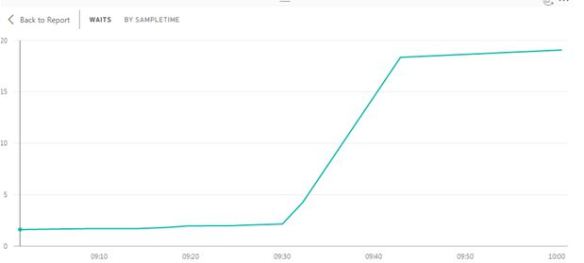
For the below I selected WRITELOG over my time samples.

waits18.JPG

waits20.JPG

What about PAGEIOLATCH_EX?

waits23.JPG

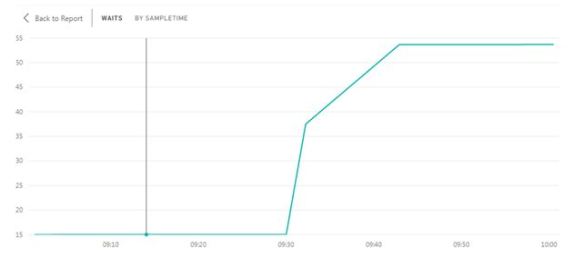
What about CXPACKET analysis?

waits24.JPG

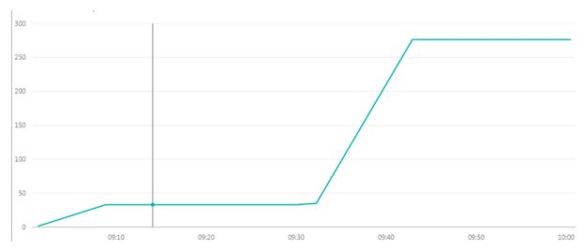
So what on earth happened at 930? Yes that was me going crazy with poor performing queries on a poor performing disk!

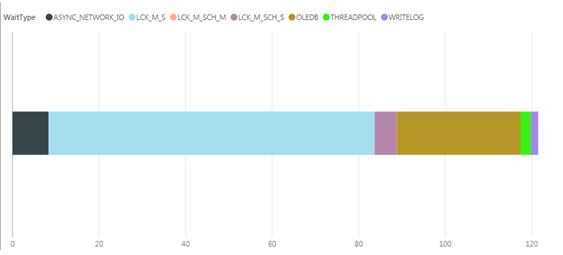
For the next example I decided to use a stacked bar chart looking at a selection of wait types only at a specific time interval.  (9.08am)

waits27.JPG

That light blue (I think) colour seems to take most of the chart, that being LCK_M_S – you can then drill into it for more details.

waits29.JPG

(Yes that is a link to the awesome sqlskills waits library, yep I helped gather some data for that)

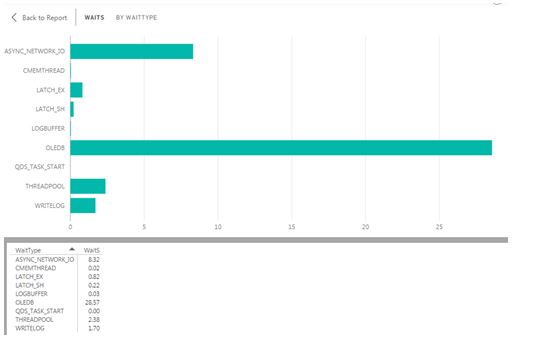
Or if you prefer a standard bar chart can be used, below concentrates on Wait (S) per wait type encountered.

waits30.JPG

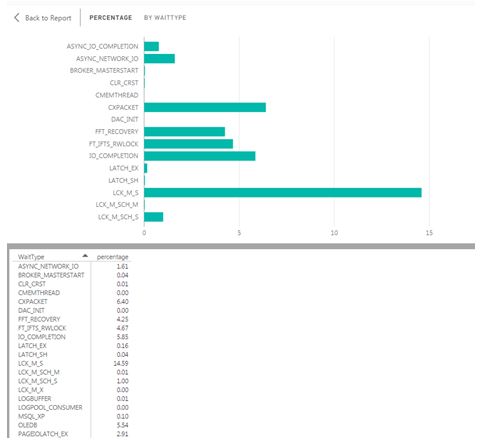
Or changing the filters you could go by percentage per wait type.

waits31.JPG

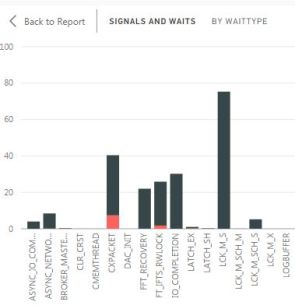
Finally I get slightly more creative with signal wait times (red).

signal

I am really enjoying this sort of analysis; it is a nice change from writing queries. Give it ago!

I use Elastic database pools – for now

When you have many SQL databases that are required to run your environments and  they show signs of specific usage patterns and some of the databases requires different performance levels then how can you ensure that the all the databases get the performance resource that they need within a specified budget?

Elastic database pools could be the answer because databases in an elastic pool consume but they do not exceed the limits of the pool, so both your cost and performance levels remain predictable.

As shown by the screen shot below there are three tiers to select from. They are basic, standard and premium tiers. Each tier imposes limits on the pool and the individual databases within the pool.

pool

Terminology

This is probably the right time to discuss the meaning behind some key terms.

  • DTU Stands for Database Transaction Unit. As quoted from https://azure.microsoft.com/en-gb/documentation/articles/sql-database-service-tiers/#understanding-dtus this is “a unit of measure in SQL Database that represents the relative power of databases based on a real-world measure: the database transaction”, the higher the DTU means higher the throughput capability.
  • eDTU Elastic Database Transaction Unit has a similar concept to the above but applies to elastic database pools only. From looking at the above diagram you may notice this unit is used at the pool level (eDTUs / pool) and database level (min/max eDTUs).
  • eDTU MIN (database level setting). The minimum number of eDTUs from the pool that a database in the pool is guaranteed at any time.
  • eDTU MAX (database level setting). The maximum number of eDTUs that any single database in the pool may use – this is NOT a resource guarantee but a ceiling limit.
  • POOL eDTU- The Max eDTUs available and shared by all databases within the pool.

My Setup

Elastic pools work for me because of the way I am using them. I use them to build environments. For example, I need to build 11 environments – each needs just 1 SQL database meaning I need 11 databases; I could go for the 11 single approach or consider using 1 pool with 11 databases within it.

This is the cost for standard single databases.

pool1

Cost for Standard elastic pool.

pool2

Based on the environment requirements and the amount of work going through it and testing I decided that 2 key environments will need to be S2 edition and the other 9 will be S0.

The databases are not going to be big; we are talking about 6.5GB per database which means  71.5GB worth of disk space.

With these facts in mind let’s crunch some numbers.

Cost comparison

Based on https://azure.microsoft.com/en-gb/pricing/details/sql-database/ and using GBP this is the cost comparison of the elastic pool versus purchasing individual SQL databases.

Standard 100 elastic pool = £136/month = £1632/YEAR

Single database cost for 9 S0 databases and 2 S2 databases = (9 x £9.1811) + (2 x £45.81) = £82.63 + £91.62 = £174.52/month = £2094/YEAR

Potentially the more databases you can add to a pool the greater your savings (assuming that you are still within you selected pool‘s limit), but you will need to work out yourself whether or not elastic pools makes financial sense for you.

Database utilisation patterns

The key to using elastic database pools is that you must understand the characteristics of the databases involved and their utilisation patterns, if you do not understand this then the idea of using an elastic database pool may cause problems.

The maximum amount my pool has is 100 eDTUs, I know for a fact that the S2 databases will not be used at the same time, the other S0 databases might be used at the same time at the most 3 of them at the same time. Basically what I am saying here is that I know that when the databases concurrently peak I know that it will not go beyond the 100 eDTU limit.

If for example my S2 database and 8 S0 databases peak at the same time then I will go well beyond my limits – but I know this won’t happen.

Another important consideration is the maximum storage allowed for a Standard 100 pool, this is currently set to 100GB and my solution is well within that limit. If the databases do grow then I would need to upgrade to standard 200 pool which will cost me £272 / month. So at the moment it makes financial sense for me.

SQL Server – Playing With Trace Flags

Trace flags are used to temporarily set specific server characteristics or to switch off a particular behavior. They are usually scoped to a global level or a session only level. For this blog post I thought it would be handy to show you how to enable (and disable) global based trace flags and then check the status on your system.

The difference between global and session is important to understand, global trace flags are visible to every connection whereas session scoped means that the trace flag is visible to only that connection.

Global Scope

For this example I will be using a global trace flag that overrides the use of index hints (This is not something I do or encourage; it is just a use case for this post).


SELECT AddressID,city FROM [Person].[Address]
WHERE City = 'Albany'

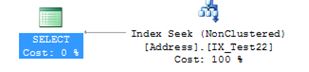
I wrote a basic query because as you will see it gives me a Non-Clustered Index Seek.

index

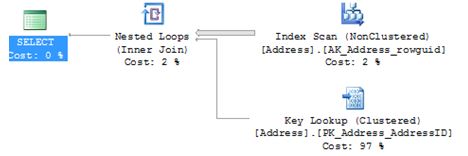
I am now going to write a query where I will force the above SELECT statement to use an index where it really shouldn’t – the outcome is a scan with a key lookup – yep not what we want

SELECT AddressID,city FROM [Person].[Address]  WITH (INDEX (AK_Address_rowguid))
WHERE City = 'Albany'

index1

So let’s set a global based trace flag to say for any connection ignore ALL index hints. I would expect it to go back to an index seek. The -1 in the TRACEON is very important – that is what makes it global.

 DBCC TRACEON (8602,-1)

SELECT AddressID,city FROM [Person].[Address]  WITH (INDEX (AK_Address_rowguid))
WHERE City = 'Albany'

index3.JPG

So it’s clear to see that even with the index hint it is now ignored.

Because it’s global I then connected to the server as someone else and issued the query with the same results.

Check status

To check what trace flags are enabled on the system run the below.

DBCC TRACESTATUS (-1);
GO

index4

Turn off

DBCC TRACEOFF (8602,-1)

DBCC execution completed. If DBCC printed error messages, contact your system administrator.

DBCC TRACESTATUS(-1);
GO

Re-issuing the above DBCC TRACESTATUS will now show nothing.

What about after a restart?

I switched the trace flag back on then restarted SQL Service and issued the status command:

index6

DBCC TRACESTATUS(-1);

GO

DBCC execution completed. If DBCC printed error messages, contact your system administrator.

The flag has been lost.

SQL Server Configuration Manager

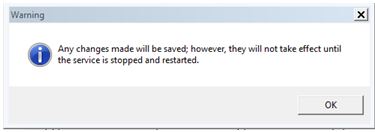
Personally I prefer using configuration manager if I am using trace flags. Under properties of your MSSQLSERVER you will see a start-up parameters tab.

index0

Click ADD.

index101

After you have restarted logon to the SQL Server and check the status

DBCC TRACESTATUS(-1);

GO

index45

I restarted the SQL service again just to prove that settings will be preserved – which they are and that is the part that I like about configuration manager.

sqlservr.exe

We all know what the sqlservr.exe and its importance, but have you noticed the size difference of the .exe when comparing SQL Server 2008R2 to SQL Server 2012 onwards?

Let’s look at 2008R2, I navigate to the BINN folder i.e. Program Files\Microsoft SQL Server\MSSQL10_50.MSSQLSERVER\MSSQL\Binn – it is around 61MB

lang.JPG

Navigating to my 2012 instance via Program Files\Microsoft SQL Server\MSSQL11.MSSQLSERVER\MSSQL\Binn it is 190KB.

lang2.JPG

I never really noticed the difference before, but I understand why.

From 2012 onwards the architecture changed, it has been broken up into multiple DLLs. I can see the extra DLL files within the BINN folder these being sqllang.dll and sqlmin.dll where each are roughly 30MB each.

lanmg3.JPG

While this post wont change your day to day job I was quite fascinated with the size difference. As a side point sqllang.dll it where Query Processing and execution facilities takes place and sqlmin.dll offers services such as checkpoint, lazywriter and lock monitor.