SQL Server – RECONFIGURE

When you want to change configuration settings for your SQL Server you would either do it via Management studio (under server properties) or via TSQL calling on sp_configure.

For example, I usually change the cost threshold for parallelism from the low value of 5 which is what I will show you now on my SQL Server, plus with a side-effect.

The side-effect is that your plan cache will get flushed, yes it really does.

Let’s check cache before changing the setting (adapted from Kimberly Tripp http://www.sqlskills.com/blogs/kimberly/plan-cache-and-optimizing-for-adhoc-workloads/)

SELECT objtype AS [CacheType],
COUNT_BIG(*) AS [Total Plans],
SUM(CAST(size_in_bytes AS DECIMAL(18, 2))) / 1024 / 1024 AS [Total MBs]
FROM sys.dm_exec_cached_plans
GROUP BY objtype
ORDER BY [Total MBs] DESC
GO
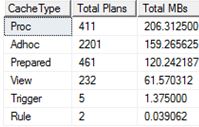
cacge.JPG

Let’s now change the setting and re-check cache.

EXEC sp_configure 'cost threshold for parallelism', '50'
RECONFIGURE;
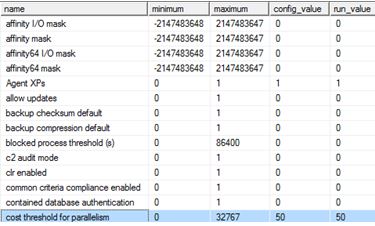
cache1.JPG

 SELECT objtype AS [CacheType],
COUNT_BIG(*) AS [Total Plans],
SUM(CAST(size_in_bytes AS DECIMAL(18, 2))) / 1024 / 1024 AS [Total MBs]
FROM sys.dm_exec_cached_plans
GROUP BY objtype
ORDER BY [Total MBs] DESC
GO
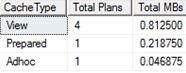
cach4.JPG

Yes, it has flushed. I couldn’t find anything on books on line about this behaviour. However it was mentioned in the following whitepaper: http://msdn.microsoft.com/en-us/library/dn148262.aspx under the flush entire plan cache section page 22 where RECONFIGURE command is mentioned. I am not sure if this applies to all options or a subset of them, more testing is required.

I was intrigued so I did one more test – enabling backup compression which is currently off.
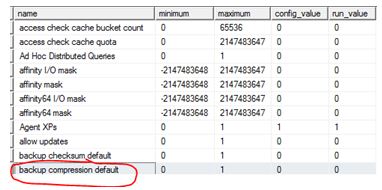
cach5.JPG

Or you can check it this way:

SELECT *
FROM sys.configurations
WHERE name = 'backup compression default' ;
GO

afasefswgf

On the same test server my cache now looks like:
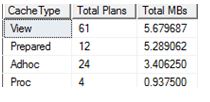
llllyr.JPG

Let’s enable backup compression and re-check.

EXEC sp_configure 'backup compression default', 1 ;
RECONFIGURE
GO

gggg.JPG

Well, no effect this time.

SELECT objtype AS [CacheType],
    COUNT_BIG(*) AS [Total Plans],
    SUM(CAST(size_in_bytes AS DECIMAL(18, 2))) / 1024 / 1024 AS [Total MBs]
FROM sys.dm_exec_cached_plans
GROUP BY objtype
ORDER BY [Total MBs] DESC
GO
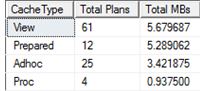
hh.JPG

This is something that I would personally talk about to a group of people and is my entry to https://sqlbek.wordpress.com/2016/10/25/t-sql-tuesday-84-growing-new-speakers/ – yes it would be demo heavy.

tsql.JPG

SQL Server Backup Compression

I thought that it would be handy to capture some Perfmon graphs of what happens to backup throughput and CPU on my SQL Server when I have backup compression on vs off against my 35GB database.

No compression

BACKUP DATABASE TATA TO DISK = 'd:\mylocation\DBNOTOCOMP.BAK' WITH COPY_ONLY,
STATS = 10

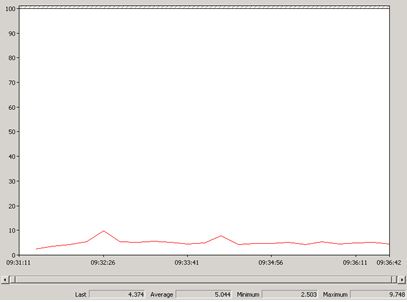
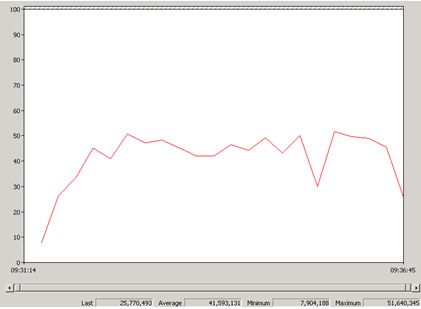
I will be using data collectors to show the perfmon counters(below) for the duration of the backup command – it just paints a better picture than running real time perfmon graphs.

% Processor Time

perf

Backup Throughput/sec

perf1

Overall Time & size

5.5 minutes to do:

perf3

With Compression

BACKUP DATABASE TATA TO DISK = ' d:\mylocation\DByesCOMP.BAK'
WITH COPY_ONLY, STATS = 10, COMPRESSION

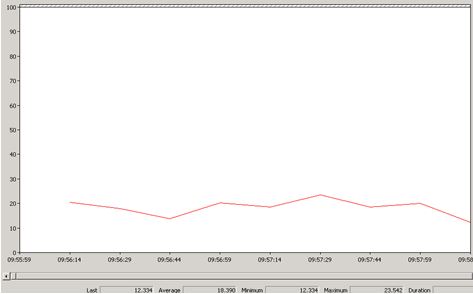
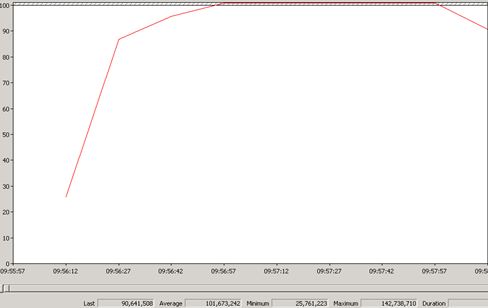
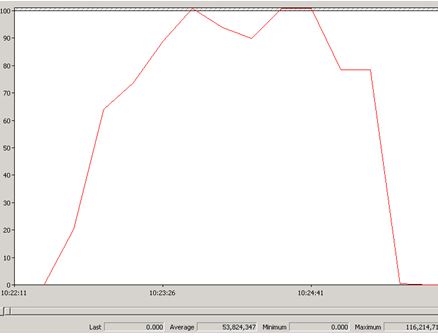
Again Data collectors paint a nice picture for CPU and Backup Throughput.

% Processor Time

perf5

Backup Throughput/sec

perf6

Overall Time & size

2.5 minutes to do:

perf7

Findings

Some of the findings maybe obvious to you, having said that here is what I found:

  • Using backup compression uses more CPU. (My Average for %Processor Time went from 5.05 to 18.93)
  • A compressed backup is much smaller hence backup speed is much faster (nearly reduced the time taken by 50%).
  • Backup Throughput more than doubled when compressing.
  • Compression ratio does depend on many factors but my ratio was 2.88.

Trace Flag 3042

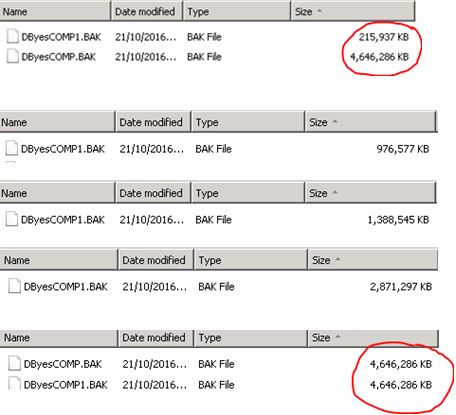
You can change the behaviour of the compressed backup. By default the Database Engine uses a pre-allocation algorithm for the backup file. For my example it pre-defined to the size of DByesCOMP.BAK = 4646286KB.

Using the trace flag you can see the change in behaviour. Instead it starts of from a low size and works its way up to the true final size.

DBCC TRACEON (3042)
BACKUP DATABASE TATA TO DISK = ' d:\mylocation\DByesCOMP1.BAK'
WITH COPY_ONLY, STATS = 10, COMPRESSION

perf8.JPG

I did find that using this trace flag made the backup operation slightly longer with a reduced throughput rate. I personally have no use for this trace flag but it was a new behaviour for me so I thought I would share it too.

perf10

More bytes for Row versioning

I like row versioning– see this link for more details: https://technet.microsoft.com/en-us/library/ms189122(v=sql.105).aspx

If your database is enabled for one of the isolation levels that uses row versioning and a row is updated it will have 14 bytes added to it.

Before anything is enabled:

SELECT name,is_read_committed_snapshot_on, snapshot_isolation_state_desc,
snapshot_isolation_state
 FROM sys.databases WHERE database_id = 18

iq1

Let’s check a table before enabling anything.

select
index_id, index_type_desc,alloc_unit_type_desc,index_depth,max_record_size_in_bytes
from sys.dm_db_index_physical_stats (db_id('AdventureWorks2018'),
object_id('AWBuildVersion'), null, null, 'DETAILED')

dfsf

Switch it on:

ALTER DATABASE [AdventureWorks2018]
SET READ_COMMITTED_SNAPSHOT ON WITH ROLLBACK IMMEDIATE;
GO

ALTER DATABASE [AdventureWorks2018]
SET ALLOW_SNAPSHOT_ISOLATION ON 
GO

SELECT name,is_read_committed_snapshot_on, snapshot_isolation_state_desc,
snapshot_isolation_state
 FROM sys.databases WHERE database_id = 18

jgjkgtjkgkgk

Let’s do some work (UPDATE STATEMENT)

UPDATE [dbo].[AWBuildVersion]
SET ModifiedDate = GETDATE()
GO

select
index_id, index_type_desc,alloc_unit_type_desc,index_depth,max_record_size_in_bytes
from sys.dm_db_index_physical_stats (db_id('AdventureWorks2018'),
object_id('AWBuildVersion'), null, null, 'DETAILED')

hjjjjj

56 +14 = 70, meaning we have a 14 byte overhead. I did some research on this and I ended up going to my book self and dug out the SQL Server 2012 Internals text book, the 14 byte overhead is needed for “the actual pointer to the file, page, and row in tempdb which needs 8 bytes and 6 bytes are needed to store the XSN” (Chapter 13. Page 823)

What happens if I disable row versioning and run an update?

ALTER DATABASE [AdventureWorks2018]
SET READ_COMMITTED_SNAPSHOT OFF
GO

ALTER DATABASE [AdventureWorks2018]
SET ALLOW_SNAPSHOT_ISOLATION OFF
GO

UPDATE [dbo].[AWBuildVersion]
SET ModifiedDate = '2009-10-13 00:00:00.000'
GO


select
index_id, index_type_desc,alloc_unit_type_desc,index_depth,max_record_size_in_bytes
from sys.dm_db_index_physical_stats (db_id('AdventureWorks2018'),
object_id('AWBuildVersion'), null, null, 'DETAILED')

There is no longer the 14 byte overhead – due to the fact that row versioning is no longer on.

lllll

The dark side of Fn_dump_dblog

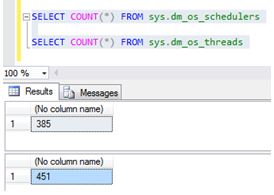
I want to show you what happens when you keep using the undocumented fn_dump_dblog function. (For example if you are consistently dumping the contents into a table for analysis)

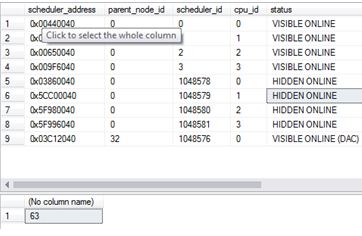
The below 2 queries shows the current state of my system

SELECT * FROM sys.dm_os_schedulers

SELECT COUNT(*) FROM sys.dm_os_threads

dark.JPG

Now let’s just set the environment up and use fn_dump_dblog and see the effect of using it.

ALTER DATABASE [AdventureWorks2012DR] SET RECOVERY FULL

BACKUP DATABASE [AdventureWorks2012DR] TO DISK = 'C:\SQLSERVER\AdventureWorks2012DR.BAK'

GO
BACKUP LOG [AdventureWorks2012DR] TO DISK = 'C:\SQLSERVER\AdventureWorks2012DRLog.BAK'

GO

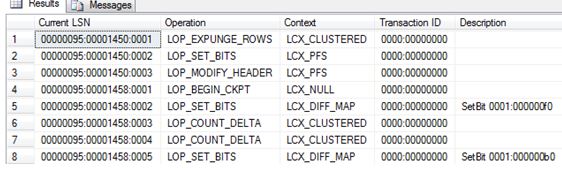
SELECT
    [Current LSN],
    [Operation],
    [Context],
    [Transaction ID],
    [Description]
FROM
    fn_dump_dblog (
        NULL, NULL, N'DISK', 1, N'C:\SQLSERVER\AdventureWorks2012DRLog.BAK',
        DEFAULT, DEFAULT, DEFAULT, DEFAULT, DEFAULT, DEFAULT, DEFAULT,
        DEFAULT, DEFAULT, DEFAULT, DEFAULT, DEFAULT, DEFAULT, DEFAULT,
        DEFAULT, DEFAULT, DEFAULT, DEFAULT, DEFAULT, DEFAULT, DEFAULT,
        DEFAULT, DEFAULT, DEFAULT, DEFAULT, DEFAULT, DEFAULT, DEFAULT,
        DEFAULT, DEFAULT, DEFAULT, DEFAULT, DEFAULT, DEFAULT, DEFAULT,
        DEFAULT, DEFAULT, DEFAULT, DEFAULT, DEFAULT, DEFAULT, DEFAULT,
        DEFAULT, DEFAULT, DEFAULT, DEFAULT, DEFAULT, DEFAULT, DEFAULT,
        DEFAULT, DEFAULT, DEFAULT, DEFAULT, DEFAULT, DEFAULT, DEFAULT,
        DEFAULT, DEFAULT, DEFAULT, DEFAULT, DEFAULT, DEFAULT, DEFAULT)

Ok so it returns some information – Great.

dark2

Let’s keep running the code (Movement into a table for future analysis). Look at the state of my system. After couple of hours:

dark3

Using this command creates more threads and hidden schedulers (these will only go after a restart). Depending on what version of SQL Server you are on and what Service Pack you may or may not have this issue. It was fixed in SQL 2012 SP2 onwards. So be on the cautious side when running these sorts of commands.

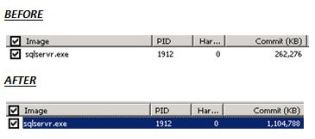
Also I noticed Memory bloat for the sqlservr.exe. Nothing else was running on this server, just my fn_dump_dblog script.  Threads need memory too. (Each thread will use 0.5MB on x86 and 2MB on x64)

capturesdd


Do YOU Checksum?

I am going to show you why you should be using checksum options on your backups (and restores).
I AM ACTUALLY NOT GOING TO WRITE THE CODE TO FORCE THIS CORRUPTION. I am starting to feel bad spreading/writing about the commands involved.

Anyways I did what was necessary for this demo and running a SELECT we now have:

SELECT * FROM testtable

SQL Server detected a logical consistency-based I/O error:
incorrect checksum (expected: 0xe41c795b; actual: 0xe41c3c5b).
It occurred during a read of page (1:55) in database ID 10 at offset 0x0000000006e000 in file ‘C:\Program Files\Microsoft SQL Server\MSSQL10_50.MSSQLSERVER\MSSQL\DATA\DBMaint2008.mdf’. Additional messages in the SQL Server error log or system event log may provide more detail. This is a severe error condition that threatens database integrity and must be corrected immediately. Complete a full database consistency check (DBCC CHECKDB). This error can be caused by many factors; for more information, see SQL Server Books Online.

Let’s create some backups without checksums.

BACKUP DATABASE [DBMaint2008] TO DISK = 'C:\sqlserver\DBMaint2008pre.bak'

It works- BACKUP DATABASE successfully processed 186 pages in 0.140 seconds (10.351 MB/sec).

--The backup set on file 1 is valid
RESTORE VERIFYONLY FROM DISK =  'C:\sqlserver\DBMaint2008pre.bak'

We did a RESTORE of the DATABASE successfully – processed 186 pages in 0.232 seconds (6.246 MB/sec).

RESTORE DATABASE [DBMaint2008DR]
FROM  DISK = N'C:\sqlserver\DBMaint2008pre.bak' WITH  FILE = 1,
MOVE N'DBMaint2008'
TO N'C:\Program Files\Microsoft SQL Server\MSSQL10_50.MSSQLSERVER\MSSQL\DATA\DBMaint2008DR.mdf',
MOVE N'DBMaint2008_log'
TO N'C:\Program Files\Microsoft SQL Server\MSSQL10_50.MSSQLSERVER\MSSQL\DATA\DBMaint2008DR_log.LDF',
NOUNLOAD,  STATS = 5
GO

Are things really ok on this newly recovered database?

DBCC CHECKDB ('DBMaint2008DR')

I dont think so – CHECKDB found 0 allocation errors and 2 consistency errors in database ‘DBMaint2008DR’.

At least let’s have a checksum in place for protection from this kind of thing.

BACKUP DATABASE [DBMaint2008] TO DISK = 'C:\sqlserver\DBMaint2008POST.bak'
WITH CHECKSUM, STATS = 10
GO

12 percent processed.
21 percent processed.
Msg 3043, Level 16, State 1, Line 14
BACKUP ‘DBMaint2008’ detected an error on page (1:55) in file ‘C:\Program Files\Microsoft SQL Server\MSSQL10_50.MSSQLSERVER\MSSQL\DATA\DBMaint2008.mdf’.
Msg 3013, Level 16, State 1, Line 14
BACKUP DATABASE is terminating abnormally.

Can you imagine if you did neither Checksum or consistency checks? I don’t think I want to imagine such an environment.