Task Manager is a liar

I remember asking a question at a recent training event, the outcome? I now don’t use task manager to try and understand how much memory SQL Server is consuming. Why? Well it has the ability to lie, and as you will see, it can lie really well. (Depending on settings)

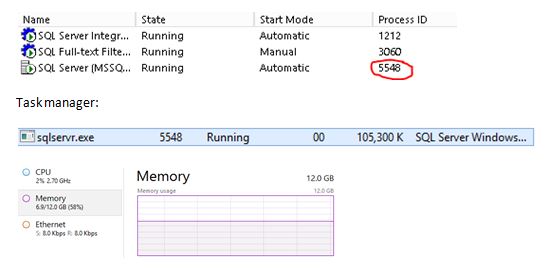
Let’s look at my environment, SQL Server is running under Process ID 5548.

tasks.JPG

Right, so I am using 58% of my server memory and looking at SQL Server it is consuming approx. 105MB? Well, it’s not. It doesn’t make any sense.

Use resource monitor to really know what is going on.

Resource monitor shows:

tasks1

Why this is so inaccurate (for my case) is because of the use of Lock Pages in Memory – Task manager does not track memory that is allocated using the AllocateUserPhysicalPages() API which is what this setting does.

CHECKDB’s Hidden Snapshot

I am in the middle of some research regarding CHECKDB and learnt something new. From SQL Server 2014 onwards the database snapshot that is used to get to a transactionally-consistent point-in-time is no longer hidden.

To understand the behavior prior to 2014 I am going to quote Paul Randal here – he states “ As the database snapshot is hidden, there is no control over where the snapshot files are placed – in fact they are created as alternate streams of the files comprising the source database” (http://www.sqlskills.com/blogs/paul/checkdb-from-every-angle-complete-description-of-all-checkdb-stages/)

In SQL Server 2014 things have changed – it is not hidden and it doesn’t use alternate streams.

DBCC CHECKDB ('Newdb')

Checking the location where the data files reside we can see the snapshot.

checkme.JPG

This disappears once CHECKDB finishes.


SQL Server – RECONFIGURE

When you want to change configuration settings for your SQL Server you would either do it via Management studio (under server properties) or via TSQL calling on sp_configure.

For example, I usually change the cost threshold for parallelism from the low value of 5 which is what I will show you now on my SQL Server, plus with a side-effect.

The side-effect is that your plan cache will get flushed, yes it really does.

Let’s check cache before changing the setting (adapted from Kimberly Tripp http://www.sqlskills.com/blogs/kimberly/plan-cache-and-optimizing-for-adhoc-workloads/)

SELECT objtype AS [CacheType],
COUNT_BIG(*) AS [Total Plans],
SUM(CAST(size_in_bytes AS DECIMAL(18, 2))) / 1024 / 1024 AS [Total MBs]
FROM sys.dm_exec_cached_plans
GROUP BY objtype
ORDER BY [Total MBs] DESC
GO
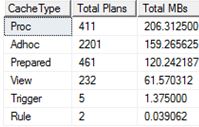
cacge.JPG

Let’s now change the setting and re-check cache.

EXEC sp_configure 'cost threshold for parallelism', '50'
RECONFIGURE;
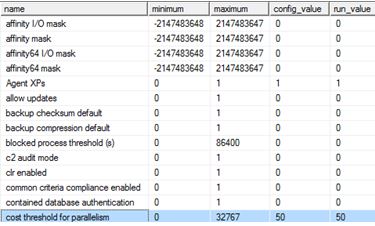
cache1.JPG

 SELECT objtype AS [CacheType],
COUNT_BIG(*) AS [Total Plans],
SUM(CAST(size_in_bytes AS DECIMAL(18, 2))) / 1024 / 1024 AS [Total MBs]
FROM sys.dm_exec_cached_plans
GROUP BY objtype
ORDER BY [Total MBs] DESC
GO
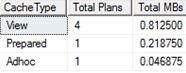
cach4.JPG

Yes, it has flushed. I couldn’t find anything on books on line about this behaviour. However it was mentioned in the following whitepaper: http://msdn.microsoft.com/en-us/library/dn148262.aspx under the flush entire plan cache section page 22 where RECONFIGURE command is mentioned. I am not sure if this applies to all options or a subset of them, more testing is required.

I was intrigued so I did one more test – enabling backup compression which is currently off.
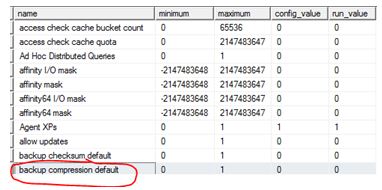
cach5.JPG

Or you can check it this way:

SELECT *
FROM sys.configurations
WHERE name = 'backup compression default' ;
GO

afasefswgf

On the same test server my cache now looks like:
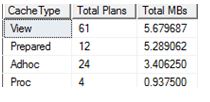
llllyr.JPG

Let’s enable backup compression and re-check.

EXEC sp_configure 'backup compression default', 1 ;
RECONFIGURE
GO

gggg.JPG

Well, no effect this time.

SELECT objtype AS [CacheType],
    COUNT_BIG(*) AS [Total Plans],
    SUM(CAST(size_in_bytes AS DECIMAL(18, 2))) / 1024 / 1024 AS [Total MBs]
FROM sys.dm_exec_cached_plans
GROUP BY objtype
ORDER BY [Total MBs] DESC
GO
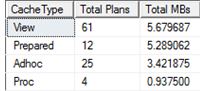
hh.JPG

This is something that I would personally talk about to a group of people and is my entry to https://sqlbek.wordpress.com/2016/10/25/t-sql-tuesday-84-growing-new-speakers/ – yes it would be demo heavy.

tsql.JPG

Copying your SQL Database

If you have created a SQL Database in Azure (PaaS) and need to make a copy of it on the same server I will show you how via a quick method.

When connected to your master database execute the following: It creates SAP2 based on SAP.

CREATE DATABASE SAP2 AS COPY OF SAP
 

To track the progress you can use the following query.

SELECT * FROM sys.dm_database_copies
WHERE partner_database = 'SAP2'
 

as

Replication state 1 means seeding, this means that the SAP2 database has not yet completely synchronised with the original database. 0 means pending, which means that the copy is being prepared.

Once this has completed you can check sys.databases to confirm that the database has successful been created.

SELECT * FROM sys.databases
WHERE name = 'SAP2'
 

as1

If you really want you can query sys.dm_operation_status to see the operations that have been performed on a database. I would expect to see some sort of operation around copying on my original database.

SELECT * FROM sys.dm_operation_status   WHERE major_resource_id = 'SAP'
ORDER BY start_time DESC;
 

as3.JPG

If you are interested in other Azure based SQL queries check out an older post of mine: https://blobeater.wordpress.com/2016/10/18/azure-sql-database-dmvs/


Always Encrypted Column Encryption

I have a need to encrypt a column within my SQL Database (Azure). I decided to use Always Encrypted. This feature essentially uses a column encryption key that is used to encrypt data in an encrypted column and a column master key  that encrypts one or more column encryption keys.

It is paramout that you install an Always Encrypted-enabled driver on the client as the driver encrypts the data in sensitive columns before passing the data to the database engine.

Your application connection string will be something similar to:

string connectionString = "Data Source=yourserver; Initial Catalog=mydb;
Integrated Security=true; Column Encryption Setting=enabled";
SqlConnection connection = new SqlConnection(connectionString);

Doing this is important because if you have the setting disabled and you have a query with parameters targeting an encrypted column it will fail. The following table from Books on Line summaries this (last column).

ae1

There is a lot to digest for this feature it’s not just the database you need to consider; a picture speaks a thousand words so have a look how everything sits together.

ae2

Setup via the wizard

Navigate to your column of interest and click the Encrypt Columns option

ae3

The wizard arrives

ae4

Next is column selection – This will be my salary column (ok it may not be a great example but it’s the idea I want to convey)

Always Encrypted uses AEAD_AES_256_CBC_HMAC_SHA_256 algorithm. There are 2 variations available, this being deterministic and randomized.

ae5

Deterministic – This is the weaker option of the 2. It uses a method which always generates the same encrypted value for any given plain text value. It allows for grouping, filtering by equality, and joining tables based on encrypted values. Be aware that Deterministic encryption must use a column collation with a binary2 sort order for character columns.

Randomised – Less predictable than the above, it does not allow for grouping and filtering on the encrypted column.

You have to make a choice here; both options have pros and cons.  If you know that you need to do grouping, indexing or joins on your encrypted column then you don’t really have a choice and will have to use deterministic.

For my example I am going with randomised. If you try and group/filter on a column with randomised you will get:

Msg 33299, Level 16, State 2, Line 8 – Encryption scheme mismatch for columns/variables ‘salary’. The encryption scheme for the columns/variables is (encryption_type = ‘RANDOMIZED’, encryption_algorithm_name = ‘AEAD_AES_256_CBC_HMAC_SHA_256’, column_encryption_key_name = ‘CEK_Auto1’, column_encryption_key_database_name = yourdb) and the expression near line ‘8’ expects it to be (encryption_type = ‘DETERMINISTIC’) (or weaker).

Next is master key configuration. Ideally I would love to setup the Azure Key Vault provider but I think that would make a great blog post (one day), so here I opted for Windows certificate store.

ae6

Save the PowerShell script if you desire.

ae7

ae8

Issue your query now:

ae9

As mentioned before this is only 1 piece of the puzzle, you need to make application changes to handle this encryption. I suggest reading through https://msdn.microsoft.com/en-us/library/mt757097.aspx as this shows you how to build your queries (the documentation is in .NET) the last thing you want is to see something like –

System.Data.SqlClient.SqlException (0x80131904): Operand type clash: varchar is incompatible with varchar(8000) encrypted with (encryption_type = ‘DETERMINISTIC’, encryption_algorithm_name = ‘AEAD_AES_256_CBC_HMAC_SHA_256’, column_encryption_key_name = ‘CEK_Auto1’, column_encryption_key_database_name = ‘mydb’) collation_name = ‘SQL_Latin1_General_CP1_CI_AS’

I also suggest reading the Feature detail section found here https://msdn.microsoft.com/en-us/library/mt163865.aspx