SQL Server ALTER INDEX….ABORT!

I know there are people out there that will be going from older versions of SQL to SQL Server 2016, yes it makes sense it is a great product with a lot of new features such as Query Store, Stretch DB to name  but a few.

However don’t forget about the features that were available in 2014 that are naturally available in 2016, such as the ability to control blocking behaviors when rebuilding indexes.

Classically when you want to use the ONLINE mode of rebuilding indexes the code would look like:

ALTER INDEX [MCD] ON [dbo].[mcdaol] REBUILD WITH(ONLINE = ON)

Looking into the locking you will see that ONLINE operation uses (Sch-M) on the corresponding table as part of the process (actually takes Shared Table Lock (S) at the beginning of the operation, and a Schema Modification Lock (Sch-M at the end)).

lock1

So to be granted a SCH-M lock you can’t have any conflicting locks, so what happens when / if you have a process that is updating the table and you want to use the ONLINE rebuild? Yes you will be blocked. With 2014 onwards we can control what happens if we get into this situation and for this post I am going to abort the other query causing me to wait.

Let’s see what happens.

I have 1 window running an update such as:

— Open Trans

BEGIN TRAN
UPDATE [dbo].[p_dinner]
SET og_status = 1
WHERE og_status = 10

In a different window I am running the Index rebuild:

ALTER INDEX [p_dinner_idx] ON [dbo].[p_dinner]
REBUILD WITH(ONLINE = ON)

Naturally this will be blocked.

lock2

So now we can control what happens here, for this example I want to kill the connection holding the locks that are conflicting with my rebuild i.e. the update (just an example).

So I run:

ALTER INDEX [p_dinner_idx] ON [dbo].[p_dinner] REBUILD
WITH
(
  ONLINE = ON
   (
     WAIT_AT_LOW_PRIORITY
     (
       MAX_DURATION = 1,
       ABORT_AFTER_WAIT = BLOCKERS
     )
   )
)
GO
lock4

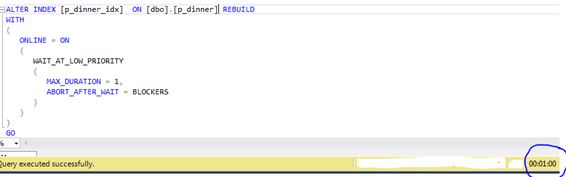
From the above image you can see after 1 minute (MAX_DURATION) the query successfully executes because it killed the connection causing the blocking, which is done via the ABORT_AFTER_WAIT = Blockers clause.
ALTER INDEX….ABORT!

I know there are people out there that will be going from older versions of SQL to SQL Server 2016, yes it makes sense it is a great product with a lot of new features such as Query Store, Stretch DB to name  but a few.

However don’t forget about the features that were available in 2014 that are naturally available in 2016, such as the ability to control blocking behaviors when rebuilding indexes.

Classically when you want to use the ONLINE mode of rebuilding indexes the code would look like:

ALTER INDEX [MCD] ON [dbo].[mcdaol] REBUILD WITH(ONLINE = ON)

Looking into the locking you will see that ONLINE operation uses (Sch-M) on the corresponding table as part of the process (actually takes Shared Table Lock (S) at the beginning of the operation, and a Schema Modification Lock (Sch-M at the end)).

lock1

So to be granted a SCH-M lock you can’t have any conflicting locks, so what happens when / if you have a process that is updating the table and you want to use the ONLINE rebuild? Yes you will be blocked. With 2014 onwards we can control what happens if we get into this situation and for this post I am going to abort the other query causing me to wait.

Let’s see what happens.

I have 1 window running an update such as:

— Open Trans

BEGIN TRAN
UPDATE [dbo].[p_dinner]
SET og_status = 1
WHERE og_status = 10

In a different window I am running the Index rebuild:

ALTER INDEX [p_dinner_idx] ON [dbo].[p_dinner]
REBUILD WITH(ONLINE = ON)

Naturally this will be blocked.

lock2

So now we can control what happens here, for this example I want to kill the connection holding the locks that are conflicting with my rebuild i.e. the update (just an example).

So I run:

ALTER INDEX [p_dinner_idx] ON [dbo].[p_dinner] REBUILD
WITH
(
  ONLINE = ON
   (
     WAIT_AT_LOW_PRIORITY
     (
       MAX_DURATION = 1,
       ABORT_AFTER_WAIT = BLOCKERS
     )
   )
)
GO

lock4

From the above image you can see after 1 minute (MAX_DURATION) the query successfully executes because it killed the connection causing the blocking, which is done via the ABORT_AFTER_WAIT = Blockers clause.

CHECKDB is slow!

Running the usual consistency checks on a database (with a new release code applied from an ISV) I noticed slower than usual timings. I started to dig into wait stats.

lemon1

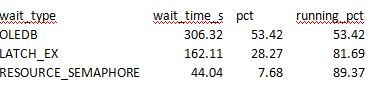
OLEDB I expected as that is what is used by CHECKDB under the covers. However LATCH_EX Wait was the 2nd highest on the list with high wait counts and high Avg_wait_S. I then decided to move into latch DMV and saw this.

SELECT * FROM sys.dm_os_latch_stats
ORDER BY waiting_requests_count desc
lemons2


All the signs of CHECKDB Latch contention.

DBCC – OBJECT – METADATA this latch can be a major bottleneck for DBCC consistency checks when indexes on computed columns exist.  As a side note DBCC_Multiobject scanner  is used to get the next set of pages to process during a consistency check.

The call stack that I captured for DBCC – OBJECT – METADATA looked like:

XeSqlPkg::latch_suspend_end::Publish+e2 [ @ 0+0x0
LatchBase::Suspend+1002 [ @ 0+0x0
LatchBase::AcquireInternal+1ff [ @ 0+0x0
CheckCrossRowset::ProcessDataRecordInternal+3d1 [ @ 0+0x0
CheckCrossRowset::ProcessDataRecord+9c [ @ 0+0x0
CheckCrossRowset::ProcessRecord+a3 [ @ 0+0x0
CheckTables::ProcessDataPage+2af [ @ 0+0x0
CheckTables::ProcessPage+31c [ @ 0+0x0
CheckTables::ProcessNextData+297 [ @ 0+0x0
CheckAggregate::GetNextFact+113 [ @ 0+0x0
CTRowsetInstance::FGetNextRow+49 [ @ 0+0x0
CUtRowset::GetNextRows+7c [ @ 0+0x0
CQScanRmtScanNew::GetRowHelper+3e1 [ @ 0+0x0
CQScanXProducerNew::GetRowHelper+28f [ @ 0+0x0
FnProducerOpen+58 [ @ 0+0x0
FnProducerThread+4df [ @ 0+0x0</value>

For more information on what the above means see Paul’s Wait/Latch library for this type @ https://www.sqlskills.com/help/latches/dbcc_object_metadata/

I have captured call stacks many times to provide data for the library and it is alot of fun. (Maybe I need to get out more?)

When I disabled the indexes on the persisted computed columns I saw no LATCH based waits and the time taken to complete went down to literally couple of minutes(as opposed to 15) . Just having a glance into the latch DMV I did not see the DBCC – OBJECT – METADATA latch.

Oh the only thing to remember is to rebuild those indexes after the consistency check; I guess you could just offload the check to a different server if disabling is not a feasible option.

Detaching corrupt databases

Question – Can you detach a corrupt database?

Answer – IT DEPENDS!

More specifically it depends on the SQL Server version. SQL 2005 and prior it was possible, with the newer versions of SQL you will not be able to issue the command.

So let’s confirm this with SQL 2016.

Well I manufactured some corruption (I am starting to enjoy doing this too much for my own liking 😉 ) where the error log stated:

The header for file ‘C:\Program Files\Microsoft SQL Server\MSSQL12.SQLMCA\MSSQL\DATA\AmazonUK.mdf’ is not a valid database file header

I try to detach the database. (By the way, there is no good reason to do this; corruption does not just go away)

USE [master]
GO
ALTER DATABASE [AmazonUK] SET  SINGLE_USER WITH ROLLBACK IMMEDIATE
GO

USE [master]
GO
EXEC master.dbo.sp_detach_db @dbname = N'AmazonUK'
GO

SQL Server Management Studio returns

ALTER DATABASE statement failed.
Msg 3707, Level 16, State 2, Line 7
Cannot detach a suspect or recovery pending database. It must be repaired or dropped.

I totally forgot how helpful this is. I thought that I would refresh the minds of whoever reads this too.

Query Store – Quick Tour

The query store, Borko Novakovic Senior Program Manager from Microsoft calls this feature “Similar to an airplane’s flight data recorder”.

To get this setup there are some pre-Reqs needed. First you need the latest version of SSMS https://msdn.microsoft.com/library/mt238290.aspx – download it and install it.  This blog post is just a whirl wind / high level post on query store, you could write a book on it.

qs1

Anyways, next comes the fun part – enabling it.

ALTER DATABASE [OURDB] SET QUERY_STORE = ON;

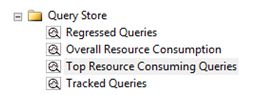
Why I said you need the latest version of SSMS is because it exposes the functionality via the GUI. You will see the query store node.

qs2

Once enabled you have a plethora of information at your finger tips – and I am really impressed with it. Now there is no real need to dig into the plan cache to get the information, or a need to run XML to parse data. It’s all here ready for use.

Beware of some default configuration options:

  • The number of days to retain data in the query store. The default value is 30.
  • The default value is 900 seconds (that is when data written to the query store is persisted to disk).
  • MAX_STORAGE_SIZE_MB limit is 100MB
  • Time interval at which runtime execution statistics data is aggregated into the query store. The default value is 60.
  • SIZE_BASED_CLEANUP_MODE – this is whether or not the cleanup process will be automatically activated, auto is the default option.
  • QUERY_CAPTURE_MODE for Azure the default is AUTO meaning ignore infrequent and queries with insignificant compile and execution duration
  • MAX_PLANS_PER_QUERY = 200.

You can change these settings via SSMS under database properties.

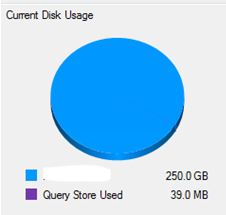
Please Note: Query store data is stored within the host database.

qs3

Let’s have a look at “Top Resource consuming queries” option. This is just 1 area of analysis, as mentioned before there is alot of information within query store that you could analyse.

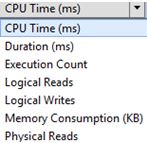
You have the ability to analyse the following metrics:

qs5

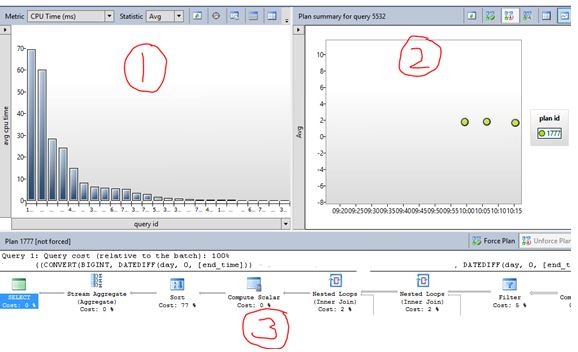
For this example I was looking at CPU (AVG).

You have 3 windows presented (for this example)

  1. This is a bar chart showing you query id’s – usually you select one of interest
  2. Shows you the plan summary for that specfic query
  3. Will give you the execution plan for the above plan id.

qs7.JPG

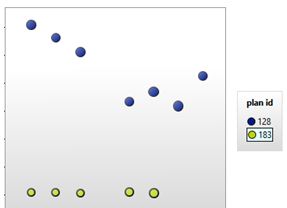
It’s so powerful you even have the option to FORCE a plan, something that you may want to consider before actually pressing that button.  Saying that, I have the below situation – you know what I am going to do right?

qs8